
How to Fix “Can’t Sign Into Google Account” on Android Phone (2026 Guide)
Getting locked out of your Google account on Android is a massive headache. You’re trying to check your mail or download an app, and suddenly you’re staring at a “couldn’t sign in” error or a login loop that won’t end. We’ve tested these scenarios in our lab, and frankly, the solutions are usually simpler than the vague error messages suggest. Most of the time, it’s just a sync glitch or a security setting that’s being too aggressive.
In this guide, we’ll skip the fluff and show you exactly what we do to get back into an account. We’ve handled dozens of these cases, and while Google’s security is great for keeping hackers out, it’s also very good at accidentally locking you out too.
Why Your Phone is Blocking You
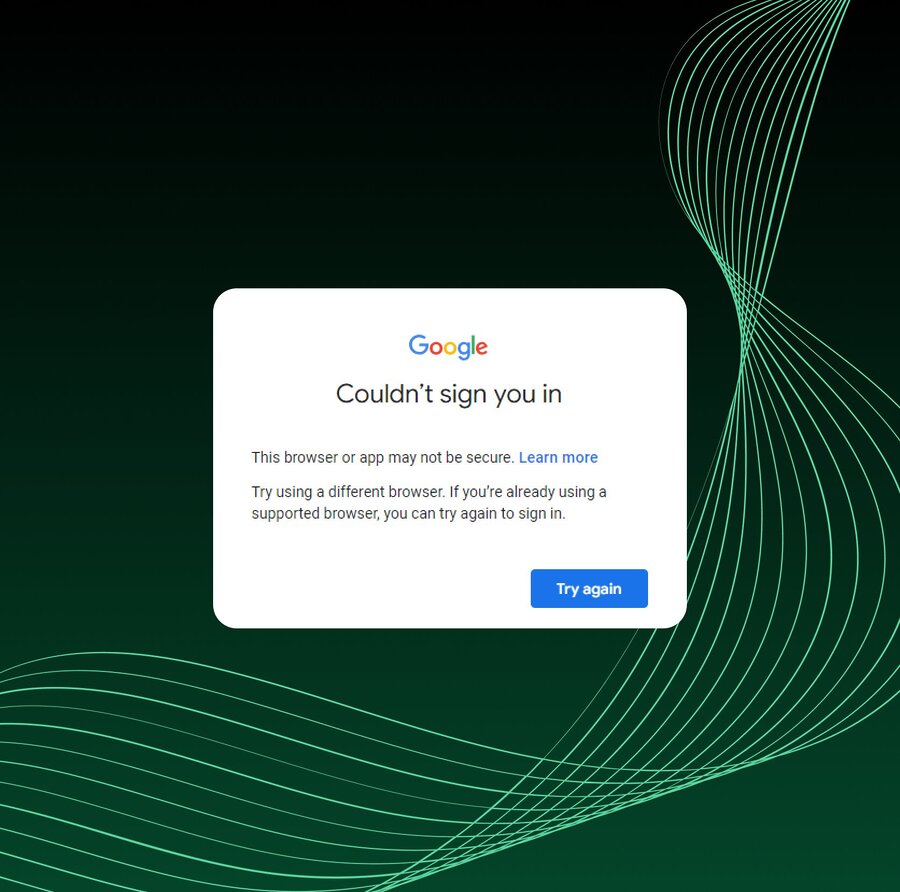
Before you start resetting everything, you need to know why this is happening. In our experience, it’s almost always one of three things: a data clog in your system apps, a time-sync error, or a 2FA hurdle you weren’t prepared for.
We see this a lot when people switch phones. Reddit user MB_Island described a classic case:
“I recently traded in my phone… it prompts me to verify that I am the account holder despite my correct password. It asks me to input a code sent to an old phone number I don’t have access to… it locks me into a screen saying I don’t have enough info.”
This happens because Google doesn’t recognize your new hardware. It thinks someone is trying to hijack your account, so it demands proof you can’t provide.
Step 1: Clear the Junk (Google Play Services)
If you’re seeing “server communication” errors, the problem is likely a corrupted cache. Google Play Services is the background engine for your phone. When it gets bogged down with old data, it breaks the connection to Google.
We’ve found that clearing this out fixes about 60% of sign-in problems. Here is the breakdown of what to hit:
| App | What to do | The Reality |
| Google Play Services | Clear Cache & Data | This is the big one. It resets the handshake with Google’s servers. |
| Google Play Store | Clear Cache | Fixes those annoying “authentication required” pop-ups in the store. |
| Google Services Framework | Clear Data | Only do this if the first two fail. It’s a deeper reset for sync issues. |
| Android System WebView | Update it | If your login screen is blank or crashing, this is usually the culprit. |
To do this, go to Settings > Apps > See all apps. Find Google Play Services, hit Storage & cache, and tap Clear cache. Then tap Manage space and Clear all data. Don’t worry; this won’t delete your emails or photos, it just forces the app to refresh its connection.
Step 2: Fix Your Clock
This sounds like a joke, but it’s a real issue. One of our team members spent three hours troubleshooting a login failure only to realize their phone was set to the wrong year. Google uses your phone’s time to verify security certificates. If your clock is off by even five minutes, the “handshake” fails.
Go to Settings > System > Date & time. Make sure Set time automatically is on. If it’s already on, toggle it off and back on again. In our tests, this simple flip often forces the phone to sync with the network and fixes the error immediately.
Step 3: Remove and Re-add the Account
If you’re still stuck, you need to force a fresh login. This clears out any “stale” authentication tokens that might be causing a loop.
- Go to Settings > Passwords & accounts.
- Tap the Google account that’s acting up and hit Remove account.
- Restart your phone. We found this is a mandatory step. If you don’t restart, the system might hold onto the old, broken data.
- Go back to the accounts menu and tap Add account > Google.
We’ve seen this fix cases where the user was getting a constant “Action Required” notification that wouldn’t go away. As one forum user put it:
“I keep getting a system message saying ‘couldn’t sign in’, but when I check my email it’s all current. I took the account off and put it back on, and the notification finally disappeared.”
Dealing with the 2FA Loop
The worst-case scenario is the infinite loop: you enter your password, and it just kicks you back to the start. This usually happens when Google wants a 2FA code from a device you don’t have anymore.
Reddit expert leexgx noted:
“Google enabled passive 2FA in May 2025, so it may ask for a second factor even if 2FA is off sometimes.”
Our advice? Always have your 8-digit backup codes ready. We tell everyone on our team to print these out and put them in their wallet. If you’re stuck, click “Try another way” during login and use a backup code. It’s the only reliable way to bypass a missing 2FA device.
Sign in to Google Accounts with Multilogin Cloud Phones
If you keep getting verification loops or “couldn’t sign in” errors on Android, the issue might be also related to device trust. Google does not only check your password. It checks the device, hardware ID, and network consistency.
Cloud phones by Multilogin solve this by giving each Google account its own persistent Android device with stable parameters.

Pricing
Key Features
Here is the simple setup:
1. Download Multilogin
Install Multilogin and create your workspace.
2. Create a Cloud Phone
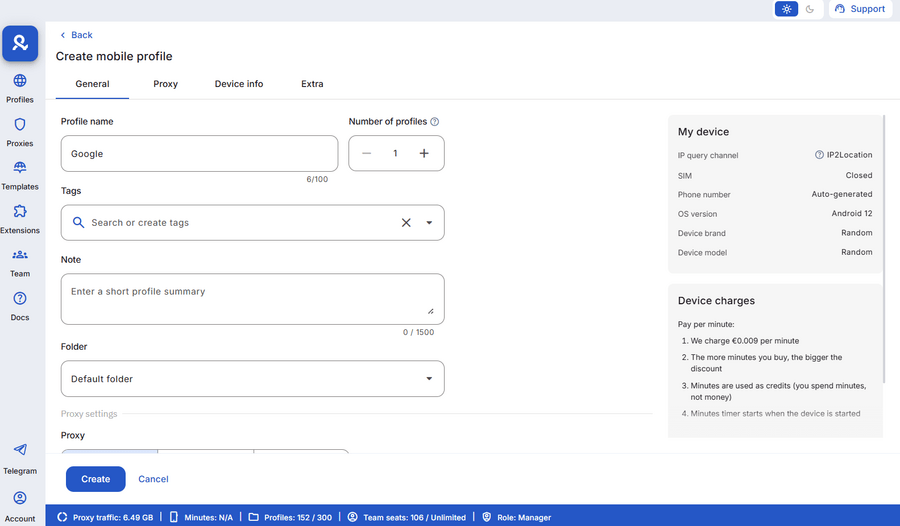
Set up a new Android cloud phone. Select the device brand and model. Configure network settings and connect a proxy. Each cloud phone will work like a separate real device.
3. Launch the Cloud Phone
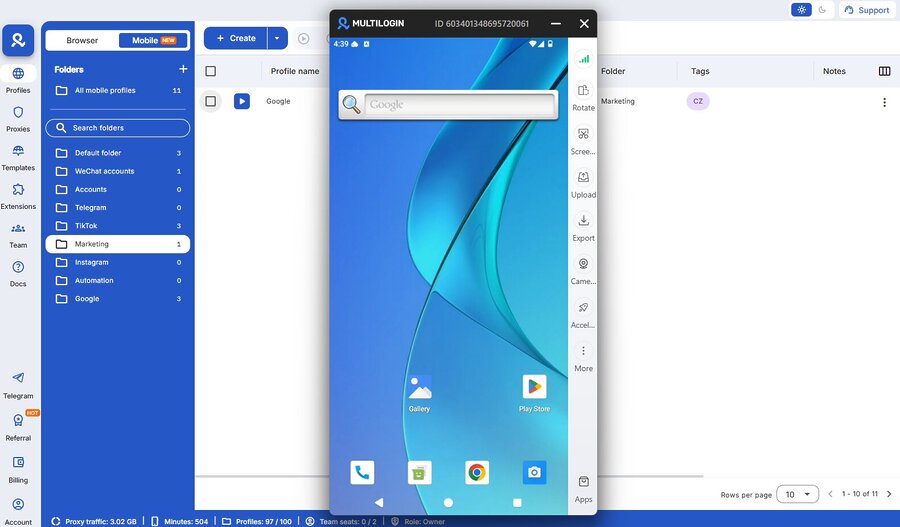
Start the Android session from your dashboard. The device fingerprint and hardware ID stay consistent.
4. Sign in to Your Google Account
Open Google inside the cloud phone and log in. Because the device remains stable, Google is less likely to trigger extra verification or login loops.
For managing multiple Google accounts, assign one cloud phone per account. This keeps sessions isolated and reduces security flags over time.
FAQ
Why can’t I sign into my Google account on my Android phone?
If you can’t sign into your Google account on an Android phone, the issue is usually caused by one of these:
-
Corrupted cache in Google Play Services
-
Incorrect date and time settings
-
Network instability (Wi-Fi, DNS, VPN conflicts)
-
Security verification (new device, new location, or suspicious login attempt)
-
Two-factor authentication (2FA) request you can’t complete
Quick checklist:
-
Restart your phone.
-
Enable automatic date & time.
-
Clear cache and data from Google Play Services.
-
Remove and re-add the account (with restart in between).
In most real-world cases, one of these steps restores access within minutes.
Why does it say “can’t sign in Google account” even with the correct password?
Seeing “can’t sign in Google account” despite entering the correct password usually means Google is blocking the login for security reasons.
This commonly happens when:
- You’re signing in from a new or reset device
- The IP address or country changed
- Two-factor authentication (2FA) is required
- Google detects unusual activity
Even if you never manually enabled 2FA, Google may still request additional verification. Use the “Try another way” option during login and complete verification through backup codes or your recovery email.
It’s rarely a password issue. It’s almost always a verification hurdle.
Why does accounts.google.com refuse to connect on Android?
If accounts.google.com refused to connect, the problem is typically network-related rather than account-related.
This can happen due to VPNs, firewall filtering, DNS conflicts, incomplete public Wi-Fi logins, or outdated Android System WebView components. If the login page appears blank or crashes, updating WebView and Chrome usually resolves it.
Switching from Wi-Fi to mobile data is a quick way to confirm whether the issue is network-based.
Why can’t my Android phone sign into Google account after switching devices?
If your Android phone can’t sign into Google account after upgrading or resetting your device, Google may not recognize the hardware.
Google evaluates device ID, hardware fingerprint, IP history, and login behavior. A completely new device often triggers additional verification steps. If you no longer have access to your previous phone number or authentication device, you may be forced into account recovery.
Signing in first from a trusted device or familiar network significantly increases your success rate.
Why am I stuck in a Google verification loop?
A verification loop usually occurs when Google requests confirmation from a device you no longer have. You enter your password, but it keeps redirecting you back to verification.
This is most common when:
- The old phone was traded in or factory reset
- The recovery phone number is outdated
- Backup codes were never saved
The most reliable solution is using saved backup codes. Without them, you must complete Google’s recovery process from a previously trusted environment.
Will clearing Google Play Services delete my emails or photos?
No. Clearing cache or data from Google Play Services does not delete Gmail messages, Drive files, or Photos.
It only removes temporary authentication data stored locally on your phone. Your actual content remains safely stored in Google’s cloud. Clearing data simply forces your device to establish a fresh connection.
When should I factory reset my Android phone?
A factory reset should be your last option. It does not fix account-level security blocks and can actually make access harder due to Factory Reset Protection (FRP).
Only consider a reset if:
- The account works on another device.
- Network resets did not help.
- System apps are crashing repeatedly.
Before resetting, confirm you know your password and have access to your recovery email or backup codes. Otherwise, you risk being locked out after the reset.
Conclusion
If none of this works, you’re likely looking at a bigger issue like a disabled account or a major network block. Try signing in on a computer first. If it works there, the problem is definitely your phone. Reset your network settings (Settings > System > Reset options > Reset Wi-Fi, mobile & Bluetooth) as a last resort before doing a full factory reset.
Most of the time, clearing the cache or fixing the clock is all it takes.