


How to manage multiple Discord accounts on mobile in 2026 (Updated)
Managing multiple Discord accounts on mobile isn’t as simple as it sounds. Unlike desktop, the official app doesn’t support logging into more than one account at a time, which can make organization and workflow a bit tricky.
Many users—gamers, content creators, and community managers—need separate accounts for personal use, gaming, streaming, or managing multiple servers. On mobile, this requires creative workarounds, because switching accounts isn’t as seamless as on desktop.
In this article, we break down everything you need to know about managing multiple accounts Discord mobile, including practical methods, common challenges, and 2026 updates:
- What changed in 2026 for mobile multi-account use
- Why native account switching is still limited
- Android vs iOS options for running multiple accounts
- Workarounds using app cloning, browsers, and device profiles
- Step-by-step methods to switch accounts safely on mobile
If you want to see Multilogin in action with Discord accounts, you can also check the accompanying YouTube video for a visual walkthrough of these setups.
What Changed in 2026 for Managing Multiple Discord Accounts
2026 didn’t bring a breakthrough for multi-account Discord use on mobile. The limits are still there. What did change is how noticeable those limits have become as Discord tightens how sessions and devices are handled.
- Account switching is still not a mobile feature
Discord added a proper account switcher for desktop and web. On mobile, it’s still missing for most users. You can’t stay logged into multiple accounts in the same app. - Mobile workarounds remain the default
App cloning, mobile browsers, and separate device profiles are still how people manage multiple accounts on phones. Nothing new replaced them. - Discord is stricter about session behavior
Frequent logins, logouts, and reused device environments trigger more verification than before. Managing accounts casually on one phone is riskier than it used to be. - Android is easier to work with than iOS
Android supports dual apps and user profiles. iOS doesn’t. That gap hasn’t closed in 2026. - Isolated browser profiles matter more now
Keeping accounts separated at the environment level reduces overlap and repeated logins. In 2026, that separation isn’t optional anymore.
Manage multiple Discord accounts with anitdetect browsers
Multilogin simplifies managing multiple Discord accountsby allowing you to run them in isolated browser profiles simultaneously. No need for app switching or cumbersome workarounds.
Pricing
Key Features
Why Multilogin?
- Seamless Management: Run multiple accounts without logging in and out.
- Privacy Protection: Each profile mimics a real device to avoid detection or bans.
- Custom Setup: Create unique profiles with distinct settings for each account.
If you want to learn more about managing multiple Discord accounts, this guide shows practical ways to handle them.
How it works
- Create separate browser profiles in Multilogin for each Discord account.
- Log in to your accounts in isolated environments.
- Switch between accounts easily without interference or detection.
If you want to see Multilogin in action with Discord accounts, you can check this YouTube video.
Can You Have Multiple Discord Accounts on Mobile?
Yes. You can use multiple Discord accounts on mobile. Just not at the same time in one official app.
Discord still doesn’t support simultaneous logins on mobile the way it does on desktop. You can only be signed into one account per app instance, which means switching accounts requires logging out, using a second app environment, or relying on browser-based access.\
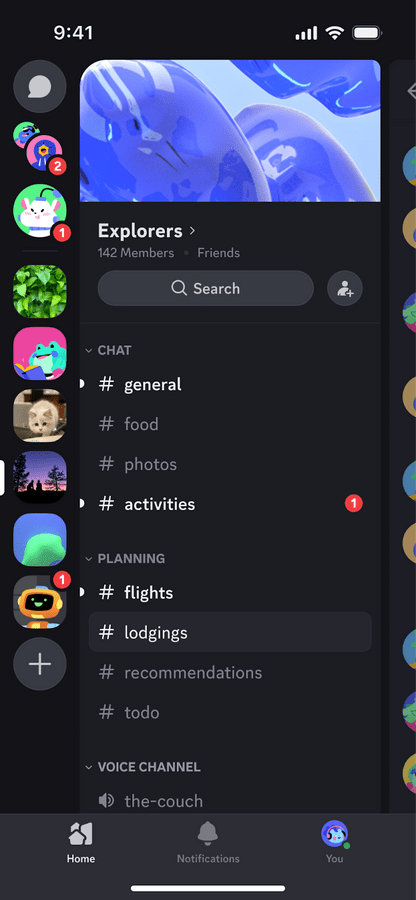
That said, running more than one Discord account on a phone is common in 2026. Moderators, community managers, and creators do it every day. It just requires the right setup. Below are the practical methods that actually work, along with the trade-offs you should expect.
Why do you need multiple Discord accounts on mobile?
You might need multiple Discord accounts for several reasons:
- You may want to keep work-related conversations separate from your personal ones, especially if you’re handling different projects or working with teams.
- Managing different servers or Discord communities requires organization. Having separate accounts for each server can make things a lot easier.
- Gamers often prefer to have one account for personal use and another for gaming purposes, or even a third one for streaming. This helps avoid unnecessary distractions.
Discord multi-account mobile management isn’t natively supported, but there are workarounds that can help you keep things organized and accessible.
If you’re considering proxies to manage multiple accounts, this resource is a solid place to explore reliable options.
How to switch accounts on Discord mobile
To switch accounts on Discord mobile, you can use different methods:
1. Using Discord’s account switcher mobile feature
Note: Discord’s account switcher works on desktop, but according to Reddit users, it’s still unavailable or inconsistent on mobile in 2026. That’s likely why you’re looking for how to switch accounts on Discord mobile.
If you need a simple way to manage multiple Discord accounts on your phone, the account switcher feature is your best bet. It lets you log into different accounts and switch between them without the hassle of logging out every time.

To use the Discord account switcher on mobile:
- Open the Discord app on your device.
- Tap your profile picture in the bottom-right corner to go to User Settings.
- Scroll down and select “Account Switcher” or “Add Account.”
- Follow the prompts to add new accounts and switch between them whenever you like.
This method is straightforward and doesn’t require any third-party apps. The only minor downside is that you still have to log in and out of accounts. But the process is quick, and it gets the job done with minimal effort.
3. Using multiple Discord apps on mobile
If you want to stay logged into two Discord accounts at once, you can install different versions of the app. This solution is perfect for those who don’t want to keep logging in and out constantly.
You can easily manage two accounts without any interruptions by using the regular Discord app alongside the Discord Beta app. This approach saves you time and lets you seamlessly switch between accounts without logging out.
4. Using third-party app cloner
If you need more than two accounts on your phone, third-party app cloning apps are a great solution. These apps allow you to create multiple instances of Discord, each logged into a different account. It’s a flexible way to manage many accounts simultaneously.
Popular cloning apps:
- Parallel space: One of the most popular cloning apps, supporting many apps, including Discord.
- Dual space: Like Parallel Space, but with fewer ads and interruptions.
- App cloner: Offers more customization options for cloned apps.
How to use cloning apps:
- Download a cloning app like Parallel Space from your app store.
- Open the app and select Discord from the list of installed apps.
- Create a clone of Discord and log into your secondary account.
This method works well if you need Discord multiple accounts mobile. It’s highly customizable and flexible, allowing you to manage as many accounts as you need. The only catch is that it might require extra device permissions and can affect your phone’s performance, especially if you’re cloning multiple apps.
4. Using a web browser to access Discord
If you only need a secondary account occasionally, you can access Discord through your mobile web browser. This is a quick and simple solution if you don’t want to install any extra apps.
How to log into Discord via a mobile web browser:
- Open your mobile browser (Chrome, Safari, etc.).
- Go to discord.com and tap “Open Discord in your browser.”
- Log in with your secondary account.
This method does have some limitations. For example, the web version of Discord may not support certain features (like push notifications or voice chat) as smoothly as the mobile app.
5. Using device profiles (Android users)
For Android users, creating separate user profiles is another effective way to manage multiple and switch Discord accounts mobile. This method allows you to have completely separate environments for each account, making it easier to manage everything.
How to create a user profile on Android:
- Go to Settings on your Android device.
- Find Users & Accounts or System and select Multiple Users.
- Tap Add User and switch to the new profile.
- Install Discord and log in with your secondary account.
The great thing about this method is that it doesn’t require any third-party apps. However, switching between profiles can be a little time-consuming, and each profile takes up additional storage space on your device.
In case one of your accounts gets disabled, here’s a helpful resource on how to recover it.
FAQ
Yes, you can have multiple Discord accounts on mobile, but it’s not straightforward. The official app only allows one account per app instance. That means you can’t be logged into two accounts in the same app at the same time. To run multiple accounts, you need workarounds: using a mobile browser for a secondary login, installing a cloned version of Discord (on Android), or creating separate device profiles.
Each approach has trade-offs. Browser access is quick but lacks some app features like push notifications or voice chat. Cloned apps let you stay logged in simultaneously, but they can impact device performance. Separate device profiles are clean and isolated but require switching the whole phone environment.
“Double Discord” usually means running two Discord accounts at once on a single device. On Android, this is possible through dual apps, app cloning software, or built-in “Parallel Apps” features. You install a second copy of Discord, log into a separate account, and now you can switch between both without logging out.
iOS doesn’t offer native cloning, so most users rely on browser-based logins for a second account. Double Discord isn’t officially supported, so you may run into occasional issues with notifications, session stability, or security checks. It works, but it’s a workaround rather than a built-in feature.
This is tricky because the mobile app doesn’t reliably support an account switcher. If you see an “Add Account” option, it’s inconsistent and not available for most users. Reddit reports from 2026 confirm many mobile users never see it. Your practical options are: log out and log back in, use a browser to run a second account, or set up a cloned app.
Logging out is simple but slow and disruptive. Browser sessions let you keep two accounts open at once but have feature limitations. Cloned apps give the smoothest experience but may require extra permissions and more storage.
Functionally, this is the same as the previous question, but it emphasizes the process. On mobile, you have no universal one-tap solution. Switching typically involves:
-
Logging out of the current account and logging into another, or
-
Opening a cloned app or browser session with the second account, then alternating between them.
Advanced users may create isolated browser profiles or Android user profiles for smoother transitions. Every method has trade-offs, so your choice depends on how many accounts you manage and how often you need to switch.
If you need frequent switching, cloned apps on Android are the most practical. They let you stay logged in on multiple accounts simultaneously. Browser sessions are okay for occasional use, but notifications are unreliable. iOS users are more limited — you’ll mostly rely on logging out/in or mobile browser sessions. No method is perfect, so understanding each trade-off is key.
Swapping accounts is essentially switching between them efficiently. On Android, you can use app cloning, Parallel Space, or separate device profiles. On iOS, browser logins are the main workaround. Avoid repeatedly logging in and out on one device — Discord’s session checks are stricter now, and excessive swapping can trigger temporary security blocks.
Discord never officially rolled out a multi-account switcher for mobile. Desktop has it, but mobile remains inconsistent. According to Reddit and community reports in 2026, most users don’t see an “Add Account” option in their app. That’s why all practical methods involve workarounds: clones, browsers, or separate profiles.
If your mobile app doesn’t show “Add Account,” you’re in the majority. This is normal. Your alternatives are:
- Log in via a mobile browser for a second account
- Clone the app on Android
- Use a separate device profile for isolation
Trying to force the feature won’t work; Discord still restricts multi-account support on mobile.
Yes, technically you can join the same call from two devices. For example, one account on your phone and another on a tablet or desktop. Keep in mind Discord will treat them as separate users. If you use multiple accounts for the same call from the same device through cloning or browsers, voice overlap or notification issues can happen. It’s possible, but the experience isn’t seamless.
On mobile, the easiest way depends on your device:
- Android: Clone the app or use a dual apps feature.
- iOS: Log in via a mobile browser for the secondary account.
- Any device: You can always log out of the first account and log into the second, but this interrupts notifications and sessions.
Conclusion
You have several options for managing multiple accounts: use the built-in account switcher for basic needs, run Discord alongside Discord Beta for dual accounts, try app cloners for multiple accounts, or use the mobile browser for occasional access.
Simply choose the option that best fits your needs, and you’ll be all set. We also hope that Discord will fully support multiple accounts in the future.